VistaPrint + Canva · UK
How to fix VistaPrint's "extend your image to the outer edge" warning in Canva
Seeing VistaPrint's warning when you finalise your Canva design? Here's what it means, why you shouldn't click past it, and how to fix it in a few minutes.
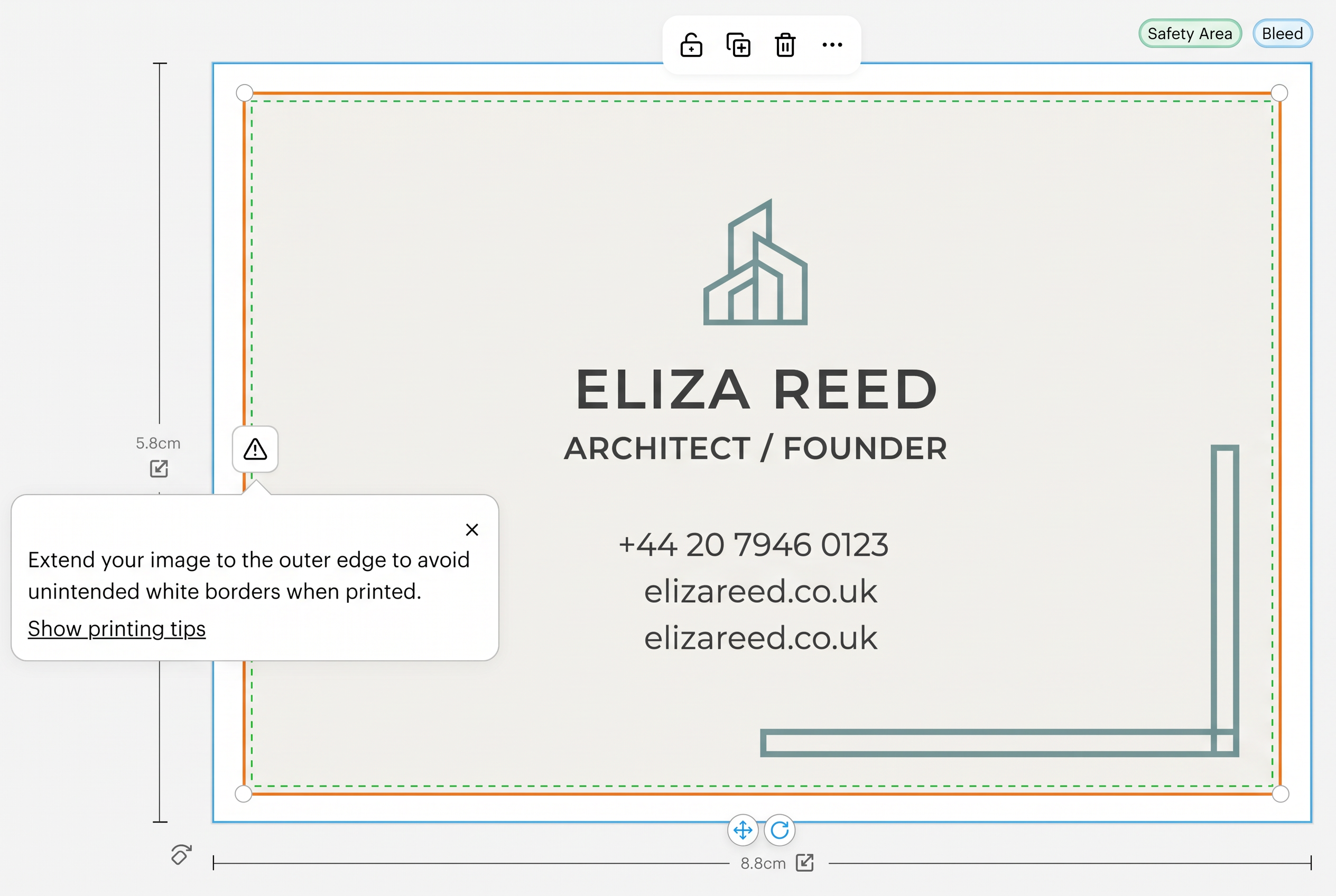
"Extend your image to the outer edge to avoid unintended white borders when printed."
The "silent approval" trap
VistaPrint won't stop you ordering. We tested it with deliberately bad artwork: no rejection, no blocked basket — just a reminder to check your bleed and safety area before you approve. Click through and they'll print exactly what you sent.
That's how people end up with white slivers along the edges or names chopped in half, and a box of cards that goes straight in the bin. Fix it before you approve.
VistaPrint's three lines, in plain English
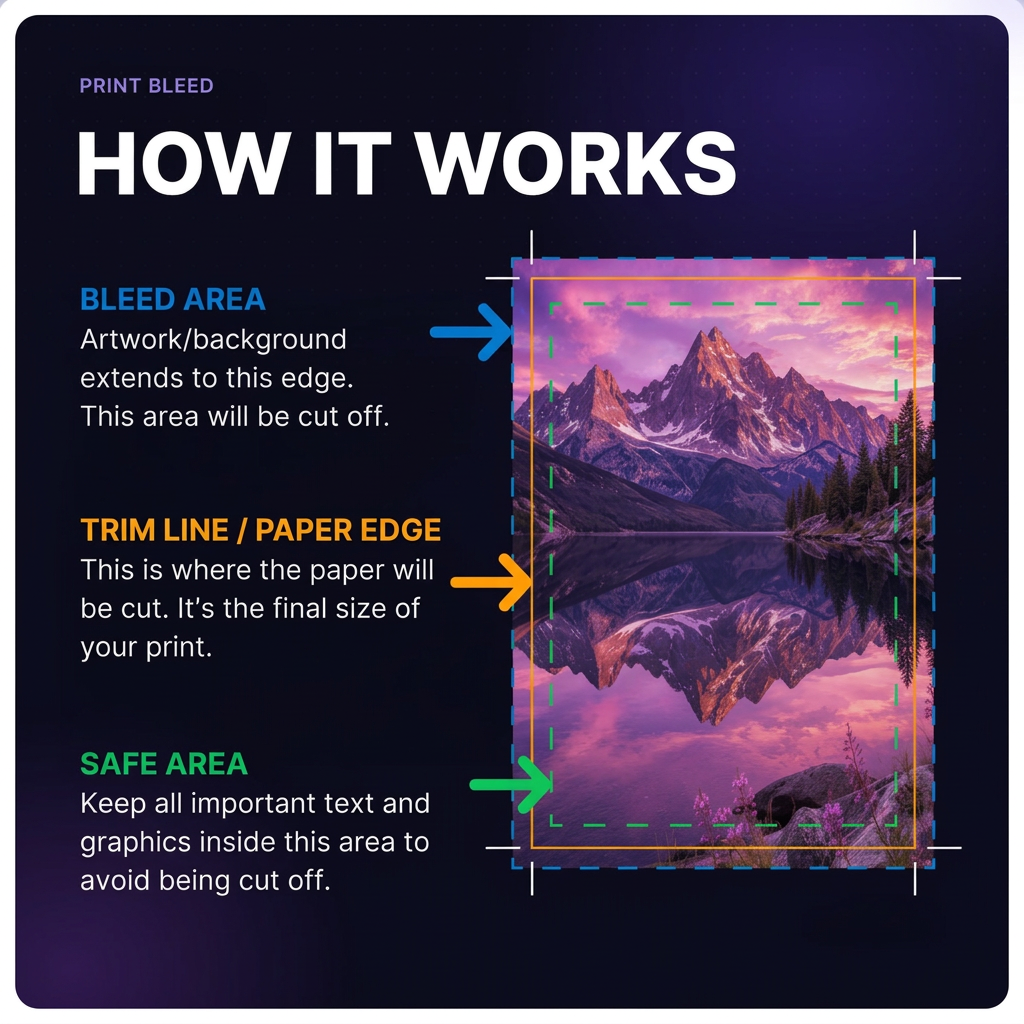
Blue line — Bleed
"Extend background to this edge to ensure full coverage and avoid blank borders during printing." Backgrounds must reach it.
Orange line — Trim
Where the blade cuts. This is the finished size of your card or flyer.
Green dashed — Safety Area
"Fit all essential elements, like text and logos, inside this area to ensure content prints completely."
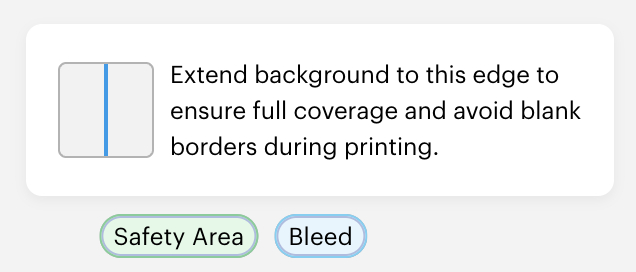
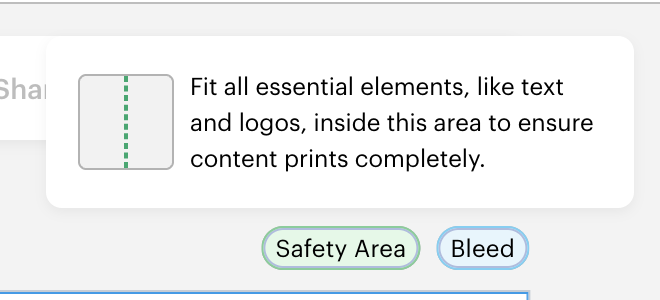
On a UK business card the editor shows 8.8 × 5.8cm — that's the 8.5 × 5.5cm card plus 1.5mm of bleed on every side.
Why Canva designs trigger it so often
- No bleed by default. Canva shows the page at its finished size. Unless you turn on bleed and export with it, the PDF has nothing beyond the cut line.
- Text placed near the edge. It looks fine on screen, but VistaPrint's safety line sits a few millimetres inside the page.
- The US business card trap. Some Canva card templates are US size (about 89 × 51mm). VistaPrint UK cards are 85 × 55mm, so the design gets stretched or cropped.
The 30-second fix
Already exported your PDF? Upload it to Printer Ready. We add 3mm of bleed by mirroring your edges, check resolution, colour and fonts, and flag anything sitting too close to the cut — no need to rebuild the design in Canva.
Fix it yourself in Canva
Step 1: Show bleed and margins
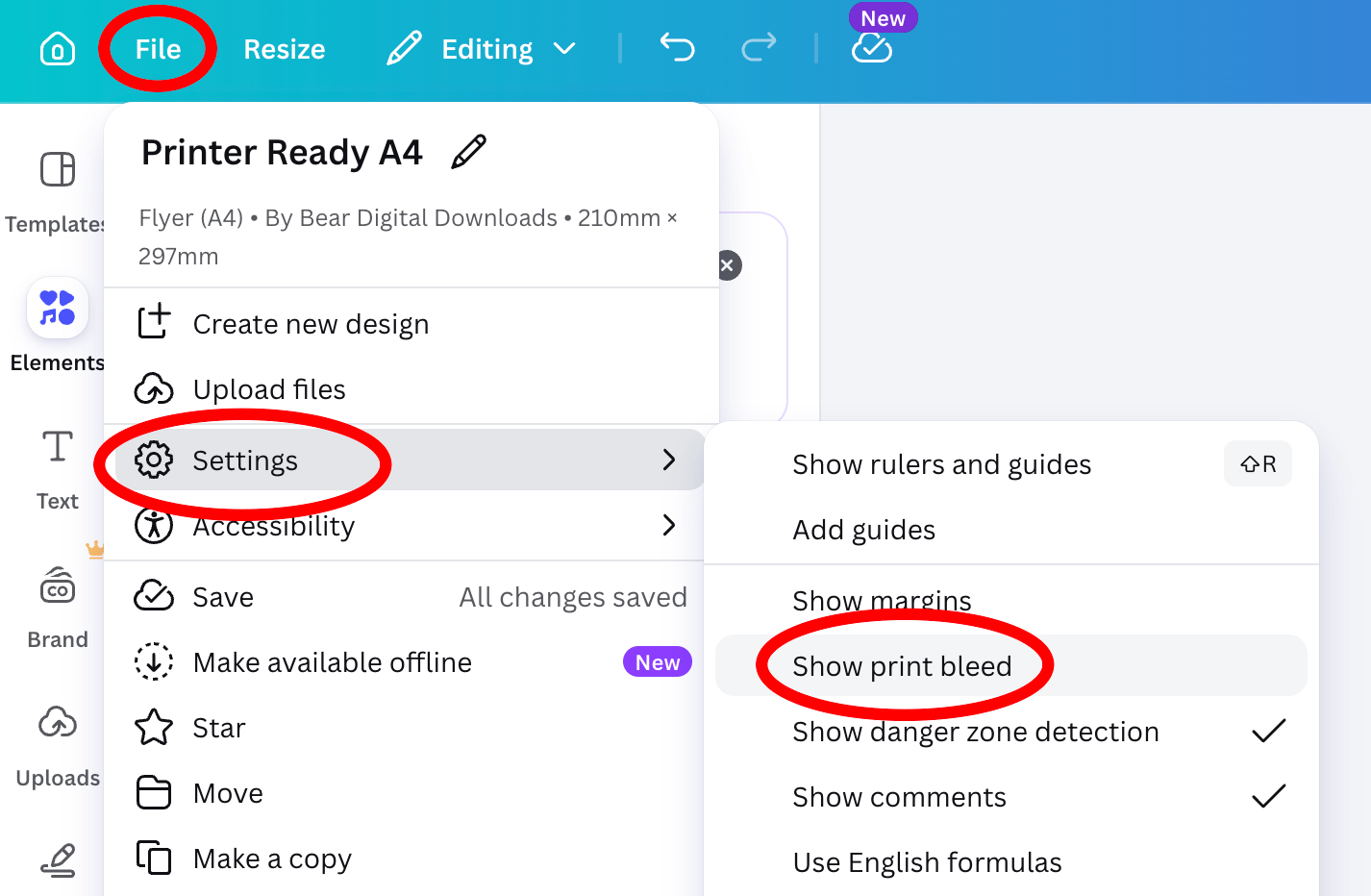
Click File → Settings and turn on Show print bleed and Show margins.
Step 2: Stretch backgrounds into the bleed
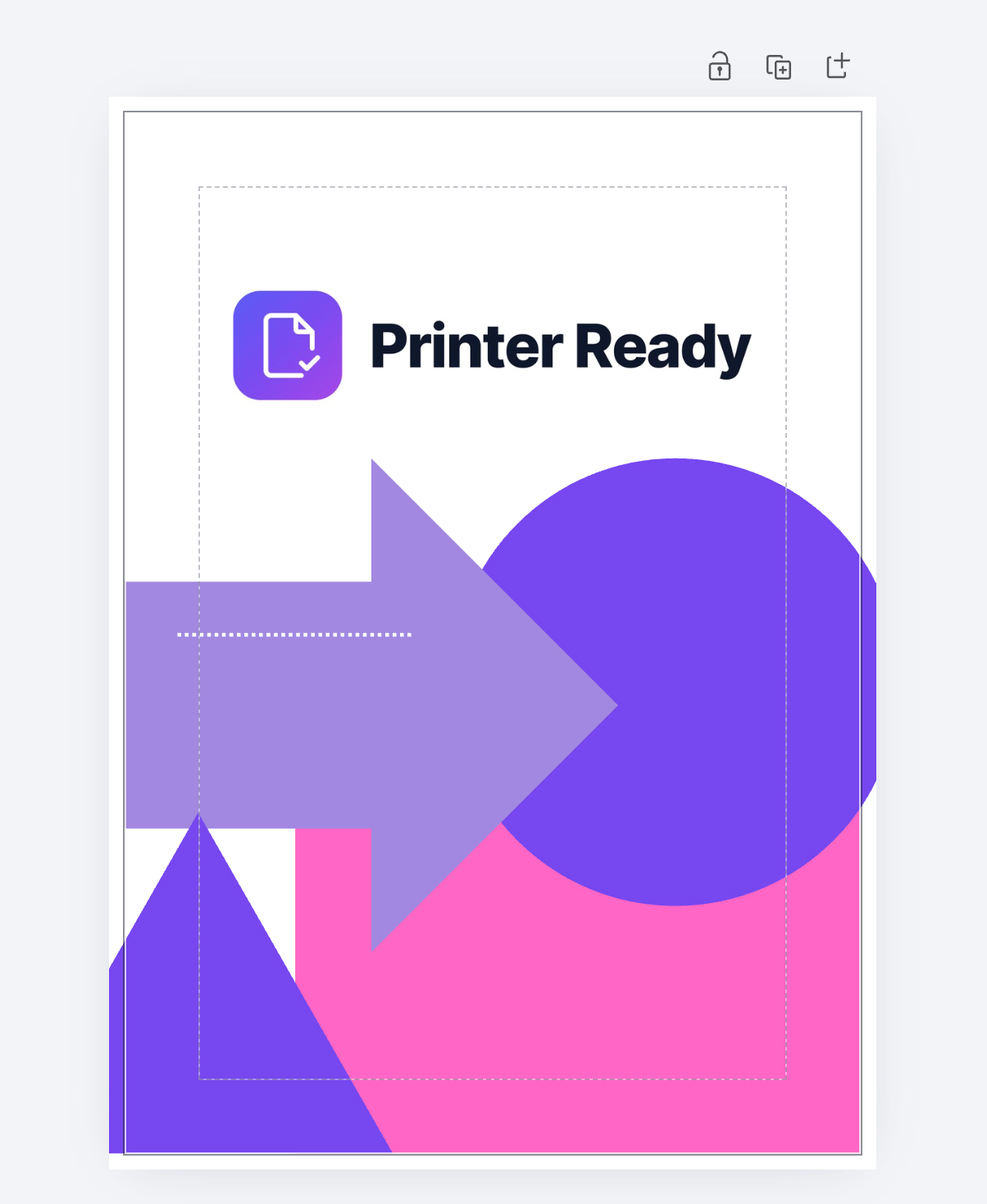
Drag every background photo and colour block out to the outer dashed line on all four sides.
Step 3: Pull text and logos inside the safety line
Move text, logos, phone numbers and QR codes at least 4mm in from the edge — inside Canva's margin guide.
Step 4: Export as PDF Print with bleed
Share → Download → PDF Print, tick Crop marks and bleed, and choose CMYK if you have Canva Pro. On the free plan, convert to CMYK here.
Step 5: Re-upload to VistaPrint
Upload the new PDF and check that the background reaches the blue line and text sits inside the green dashed line before you approve.
Canva canvas sizes with 3mm bleed
| Product | Finished size | Canvas with bleed |
|---|---|---|
| Business card (UK) | 85 × 55mm | 91 × 61mm |
| A6 flyer | 105 × 148mm | 111 × 154mm |
| A5 flyer | 148 × 210mm | 154 × 216mm |
| A4 flyer | 210 × 297mm | 216 × 303mm |
Need another size or a template with the guides drawn in? Use the free bleed calculator. Always double-check the exact product size on VistaPrint before you order.
Common questions
Will VistaPrint reject my file if the bleed is wrong?
No. VistaPrint lets you approve and order anyway — it only shows a warning and a reminder to check. They print what you send, so white edges or cut-off text are on you.
How much bleed does VistaPrint need?
Their UK business card editor shows 8.8 × 5.8cm for an 8.5 × 5.5cm card — 1.5mm per side. A 3mm bleed is the safe standard and covers it; check the product page for other items.
Why doesn't my Canva business card fit VistaPrint UK?
Some Canva business card templates are US size (3.5 × 2 inches, about 89 × 51mm). VistaPrint UK's standard card is 85 × 55mm, so a US design gets stretched or cropped. Start from a custom 85 × 55mm design instead.
Does Canva Free add bleed?
Yes — Show print bleed and the Crop marks and bleed export option work on the free plan. CMYK export needs Canva Pro, but you can convert the PDF afterwards.
Why did my VistaPrint colours come out dull?
Canva designs in RGB (screen colours). Printers use CMYK inks, and bright blues, greens and pinks can look flatter when converted. Converting to CMYK first lets you see the shift before you order.
Stop fighting the warning
Upload your Canva PDF and get a print-ready file back before your basket times out.