Canva · Free plan friendly
How to export a 300 DPI print-ready PDF from Canva
Canva doesn't have a "300 DPI" button — but it does have the right export. Here's which one to pick, and why your print can still come out blurry if you skip one check.
The short answer
Go to Share → Download, set File type: PDF, pick the Print preset, and switch on Crop marks and bleed. This works on the free plan. The Digital preset is for screens — don't send that to a printer.
The catch: the Print preset can't fix a small photo
DPI is about how many pixels your image has for the size it prints. If you dropped in a screenshot or a photo saved from social media and stretched it across an A5 flyer, exporting with the Print preset won't add the missing detail. It will still print soft or pixelated.
See why Canva designs print blurry and how to fix low-resolution images for a visual comparison and practical checks.
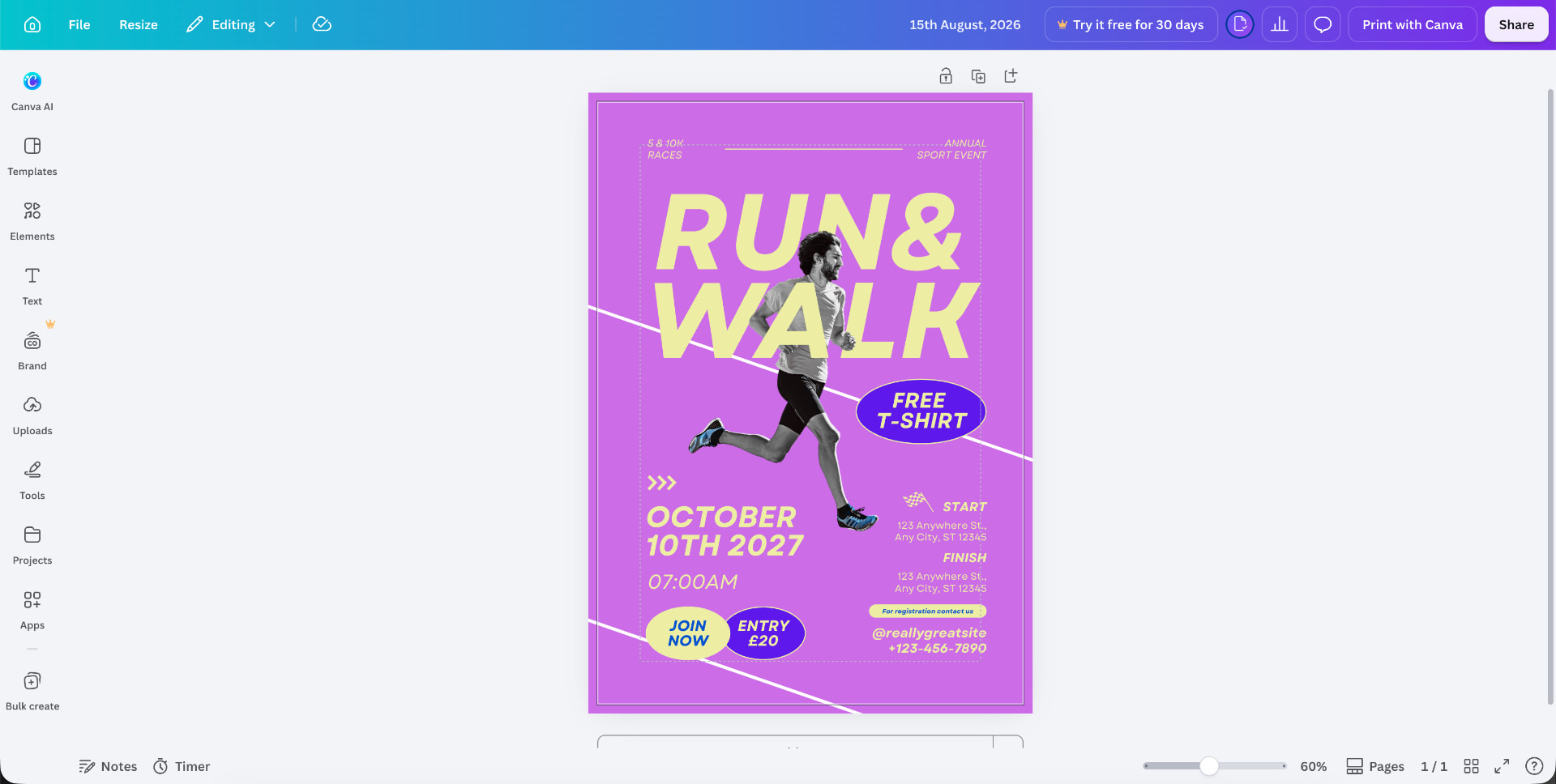
Step by step
Step 1: Use images big enough for the print size
Upload the original photo, not a screenshot. Check the pixel sizes in the table below.
Step 2: Turn on print bleed
File → Settings → Show print bleed, then drag backgrounds to the outer edge. Need help? See our Canva bleed guide.
Step 3: Choose PDF, then the Print preset
Share → Download → File type: PDF, then click Print under Presets. Not Digital.
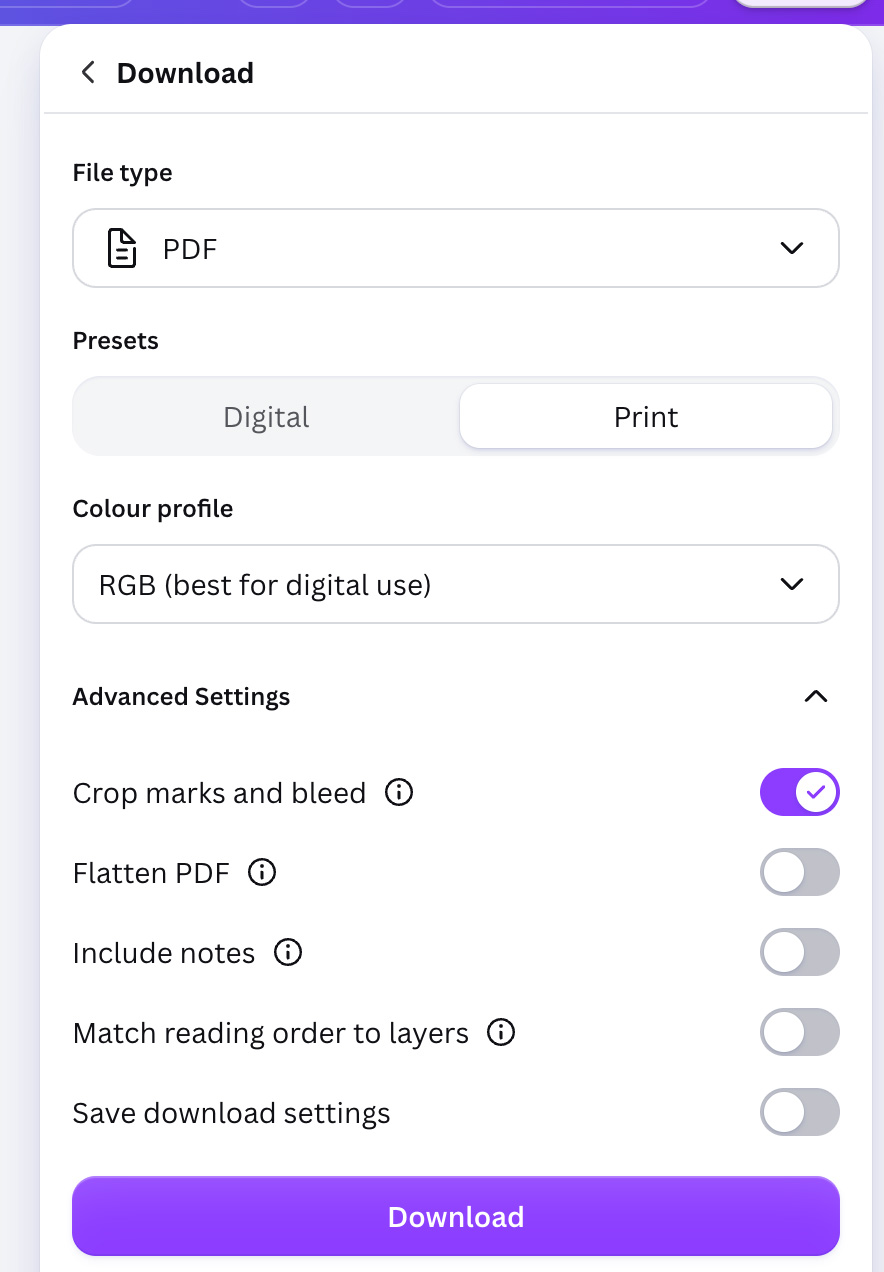
Canva's Download panel: File type PDF, Print preset, and Crop marks and bleed switched on. Step 4: Turn on Crop marks and bleed
Open Advanced Settings and switch on Crop marks and bleed. Leave Colour profile on RGB if you're on the free plan. CMYK colour needs Canva Pro — on the free plan you can convert to CMYK here.
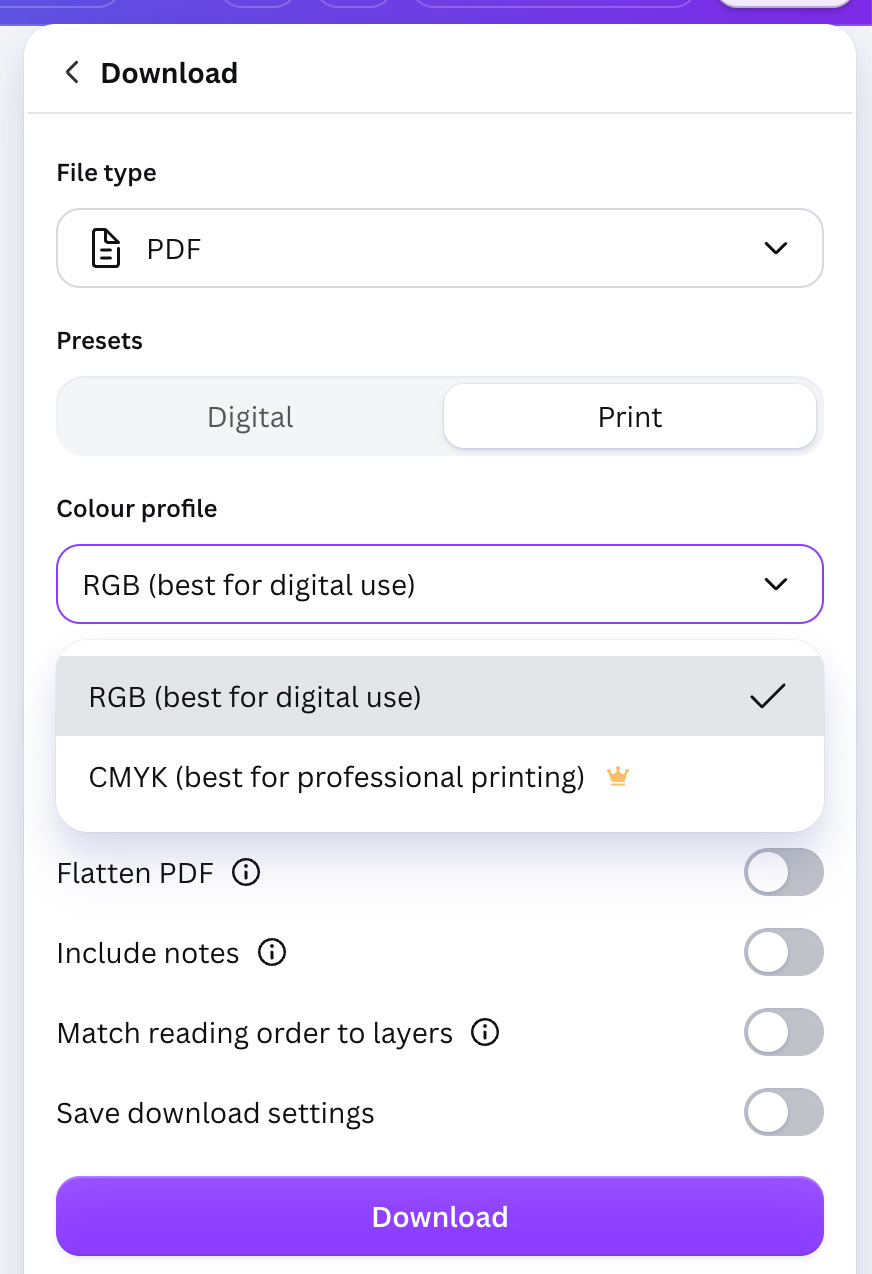
RGB is free. CMYK has the gold crown, so it needs Canva Pro — 300 DPI quality doesn't. Step 5: Check the PDF before you order
Upload it to Printer Ready. We flag any image under 300 DPI at its printed size, plus missing bleed and colour issues.
Pixels needed for 300 DPI
| Product | Finished size | Full-bleed image at 300 DPI |
|---|---|---|
| Business card (UK) | 85 × 55mm | 1,004 × 650 px |
| A6 flyer | 105 × 148mm | 1,240 × 1,748 px |
| A5 flyer | 148 × 210mm | 1,748 × 2,480 px |
| A4 flyer | 210 × 297mm | 2,480 × 3,508 px |
Add a little extra for bleed. For other sizes, use the free bleed calculator.
Common questions
Can you export 300 DPI from Canva for free?
Yes. The PDF download with the Print preset is on the free plan and is designed for print quality. What you can't do for free is export in CMYK — that needs Canva Pro, or you can convert the PDF afterwards.
Why is my Canva PDF still blurry when printed?
The Print preset can't add detail that isn't there. If you used a small or screenshot image, it will still print soft. Use the largest original photo you have, and don't stretch images far beyond their size.
What's the difference between the Digital and Print presets?
The Digital preset makes a smaller file for emailing and screens, so images are compressed. The Print preset keeps images at higher quality for printing and lets you add crop marks and bleed.
Should I export a PNG or JPG for printing?
Usually no. Most printers prefer a PDF because text stays sharp and bleed can be included. Use PDF with the Print preset unless your printer specifically asks for an image file.
How many pixels do I need for 300 DPI?
Multiply the size in inches by 300. A5 (148 × 210mm) needs about 1,748 × 2,480 px; A4 needs about 2,480 × 3,508 px; a UK business card needs about 1,004 × 650 px.
Not sure your export is sharp enough?
Upload your Canva PDF and see every low-resolution image before you pay for print.