Canva · Image resolution
Why is my Canva design blurry when printed?
Your flyer looks sharp on screen. You export with the Print preset. But the printed photos still look soft. Here’s how to find the cause — and fix it before you order again.
6 min read
The short answer
The most common cause is a photo with too few pixels for the size you’re printing it. Canva’s Print preset helps preserve quality, but it cannot make a small screenshot into a detailed, full-page photo. Use a larger original image, print it smaller, then export a new PDF.
Same photo. Different amount of detail.

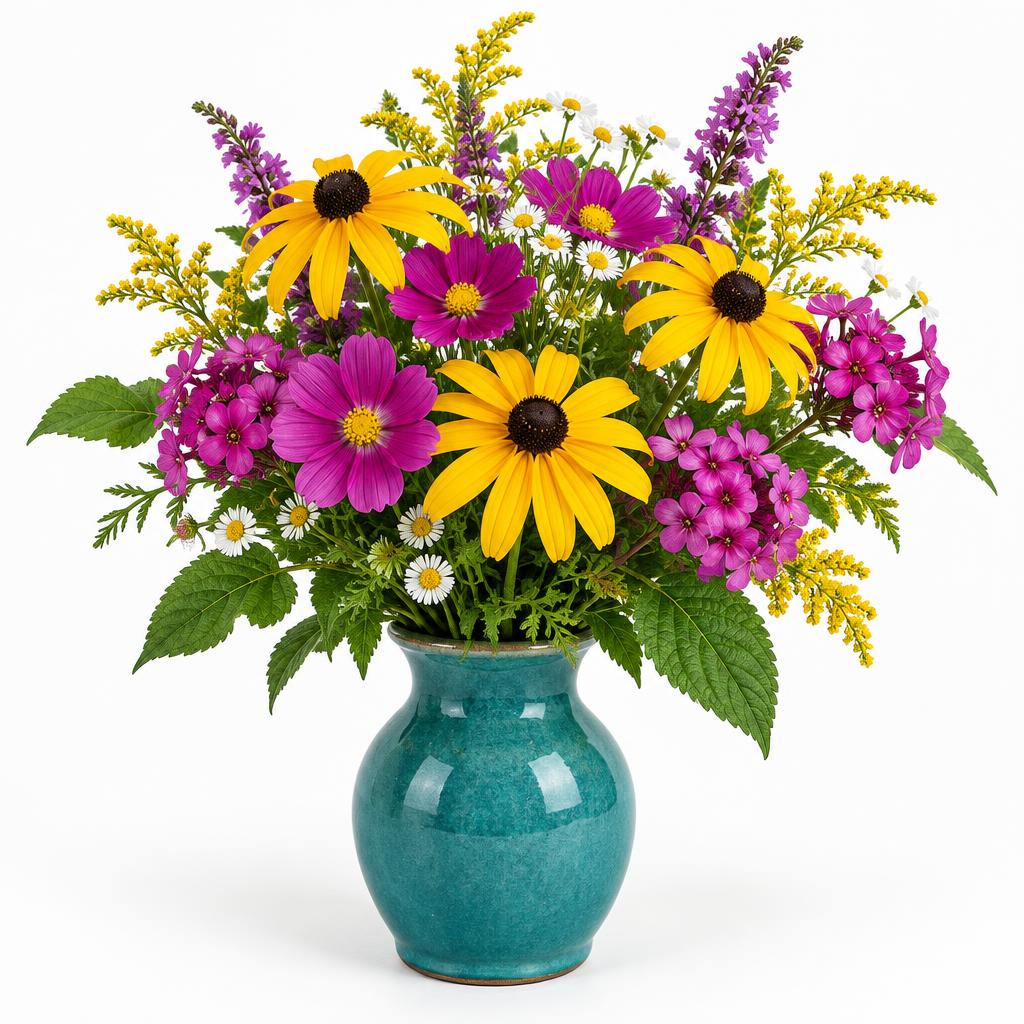
Illustrative comparison, not an actual print proof. The left image was reduced to 48 × 48 pixels and enlarged; the right is the 1,024 × 1,024 original. Even the sharper version must be printed at a suitable size.
Why a sharp screen preview can be misleading
When Canva fits an entire page on your screen, a photo might only occupy a few hundred screen pixels. On paper, that same photo could cover half an A4 sheet. The preview is not an actual-size print proof, and a good-looking thumbnail does not tell you how much detail the original contains.
Screenshots, images downloaded from social media and small web thumbnails are common culprits. Heavy cropping also matters: only the pixels left inside the crop contribute to the visible printed photo.
If only photos look soft while text stays crisp, start with image resolution. If everything looks fuzzy, check that you sent the PDF rather than a screenshot or compressed JPG. If a high-resolution original is already out of focus, more pixels will not fix the focus.
DPI is about pixels at the printed size
Printers often say “300 DPI”. For photos, what we’re measuring is pixels per inch (PPI): how many image pixels fit into each inch of the printed picture. The practical calculation is:
Effective resolution = image pixels ÷ printed size in inches
A 600-pixel-wide photo printed 2 inches wide has 300 PPI. Stretch that same photo to 6 inches wide and it has just 100 PPI. Exporting it with a different setting does not change how much original detail you have.
Useful pixel sizes for 300 PPI
| Image area | Printed size | Pixels needed* |
|---|---|---|
| Small square photo | 50 × 50mm | 591 × 591 |
| UK business card | 85 × 55mm | 1,004 × 650 |
| A5 page | 148 × 210mm | 1,749 × 2,481 |
| A4 page | 210 × 297mm | 2,481 × 3,508 |
*Rounded up to whole pixels, for the finished area without bleed. These page sizes apply only when a photo fills the whole page — a smaller photo needs fewer pixels. For an edge-to-edge image, allow extra for bleed using our canvas size calculator.
How to check and fix blurry images in Canva
1. Find the original image dimensions
Open the source photo’s file information on your computer or phone and look for width and height in pixels — for example, 3,000 × 2,000. On Windows, look in Properties → Details; on a Mac, open it in Preview and use Tools → Show Inspector. File size in MB alone does not tell you the resolution.
2. Compare pixels with the space it fills
Use the table above or divide the pixel width by the printed width in inches. Account for any crop. Do not judge only by zooming far into Canva — extreme zoom makes even a suitable photo show its pixels.
3. Replace it, or make it smaller
Upload the full-size camera photo or request the original from whoever supplied it. Avoid saving it through a messaging app that compresses pictures. If no larger version exists, reduce the photo’s size in the design, use a different image, or change the layout so it does not need to fill the page.
For logos, use a suitable vector file such as SVG where Canva supports it, rather than a screenshot. Keep text as editable text instead of placing a picture of text.
4. Export PDF with the Print preset
Choose Share → Download → File type: PDF → Print, not Digital. Add crop marks and bleed if your printer requests them. The screenshot below shows Canva’s download options; labels may vary between accounts.
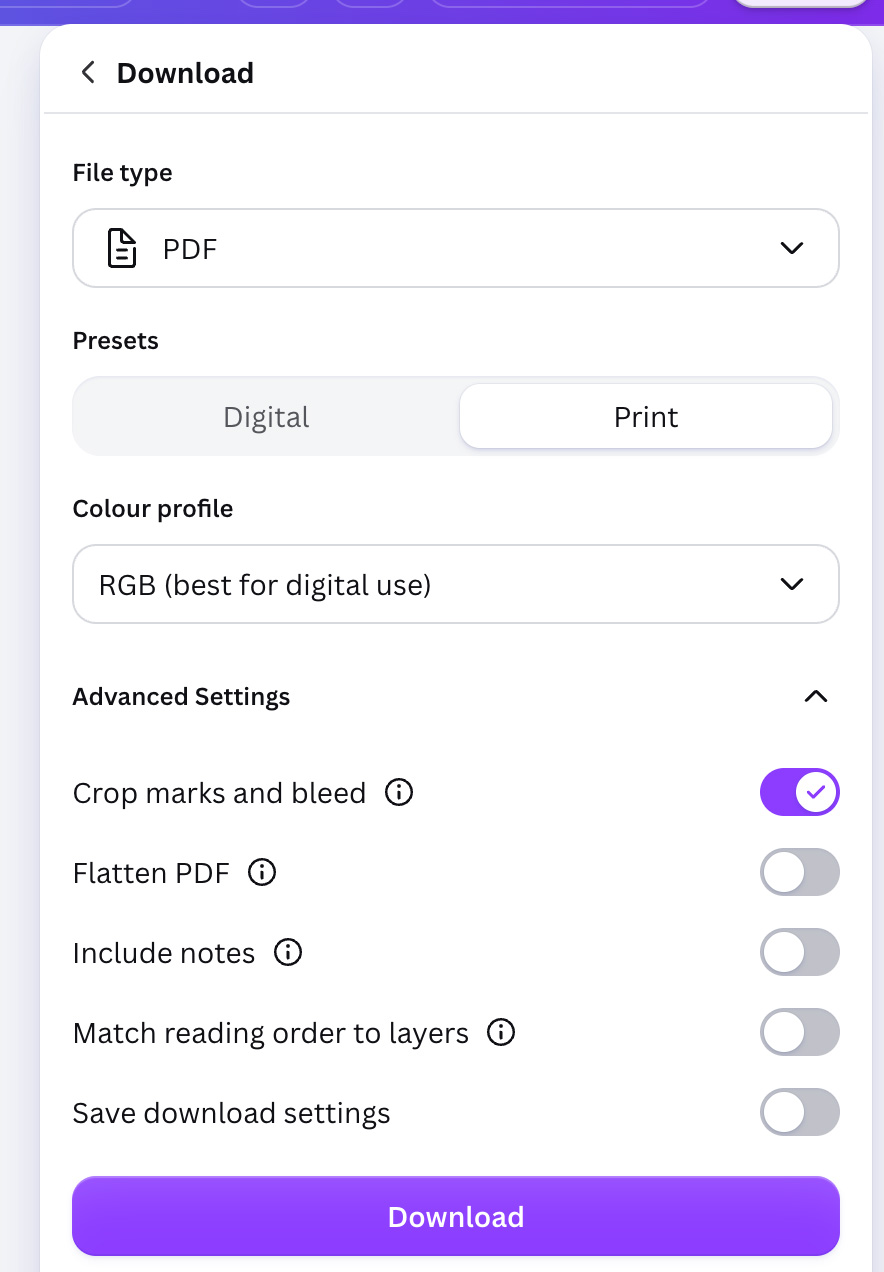
Print export preserves quality — it does not sharpen a low-resolution source. For the full walkthrough, see how to export a print-ready PDF from Canva.
5. Check the exported file before ordering
Upload your PDF to Printer Ready to check image resolution alongside size, bleed, colour and fonts. Review any resolution warning, replace the affected photo in Canva and export again. For important jobs, ask your printer for a proof and inspect it at the intended size.
Common questions
Why does my Canva design look sharp on screen but blurry in print?
A screen preview can hide a shortage of image pixels. Printing the same photo at a larger physical size spreads those pixels further apart. A small image can look fine in a thumbnail but pixelated on a flyer.
Does Canva's Print preset make every image 300 DPI?
No. The Print preset preserves better export quality, but it cannot recreate detail missing from the original image. A low-resolution photo can still have low effective resolution inside a print PDF.
Can I check DPI inside Canva?
Do not rely on a single design-wide DPI number. Check the source image's pixel dimensions and the physical size it occupies in the design, or export your PDF and use a print checker to assess image resolution at the printed size.
Will Canva Pro or an image upscaler fix a blurry photo?
Canva Pro does not automatically replace a low-resolution source. Upscaling can smooth an image or invent detail, but it is not the same as recovering the original photo. Use the largest original file where possible and inspect an actual-size proof.
Is 300 DPI always required?
300 pixels per inch is a common target for photos on small-format print viewed close up, such as flyers and business cards. Larger posters viewed from a distance may use less. Always follow the printer's specification; resolution is not a guarantee that an out-of-focus photo will look sharp.
Can Printer Ready fix low-resolution images automatically?
Printer Ready checks image resolution in your exported file. A warning tells you to review the source image; it does not mean missing photographic detail can be restored. Replace the image or reduce its printed size in Canva, then export and check again.
Check your Canva PDF before you pay for print
Find low-resolution image warnings alongside the other print checks, before your file reaches the printer.
Check my PDF free